

Note: the STM32F401 series and the STM32F411 V3.0 revision were discontinued in 2023. Anything still on sale is not made by WeAct Studio — take quality issues up with whoever sold it to you. The current STM32F411 core board is revision
V3.1; check before you buy.
Supported flashing methods
SWD:  every STM32 series supports it
ISP mode:
    Serial:  nearly every STM32 series supports it
USB (DFU): STM32F4, STM32H7, STM32U585, STM32G4, STM32G0B1 and othersFlashing in ISP mode
There are two ways to program the chip in ISP mode:
- Serial download — needs a USB-to-serial adapter.
- USB download — recommended, not available on STM32F103, needs only a data cable.
Entering ISP mode
- Option 1: while powered, hold BOOT0 and reset, release reset, then release BOOT0 after 0.5 s.
- Option 2: while unpowered, hold BOOT0, apply power, release BOOT0 after 0.5 s.
Wiring
- USB download: connect the board's Type-C or USB port with a data cable.
- Serial download: USB-to-serial module, TX → PA10, RX → PA9.
Recommended tools:
STM32CubeProgrammerorWeAct Studio Download Tool
Downloads
Baidu Netdisk:  https://pan.baidu.com/s/5cdUxxlNBMhIWb_SnhLAKcw
Quark: https://pan.quark.cn/s/c0c9ed63597eSerial download
Wire the USB-to-serial adapter (a CH340, for example) so that TX goes to PA10 and RX goes to PA9. Do not connect the MCU's own USB port to the computer — the board must be powered externally, otherwise the download misbehaves. There are two tools: ST's own STM32CubeProgrammer, and our portable WeAct Studio Download Tool.
Serial download with STM32CubeProgrammer
Select UART mode in the software.


Serial download with WeAct Studio Download Tool
- Extract
WeAct Studio Download Tool. - Double-click
WeAct Studio UART Download Tool.bat. - Put the MCU into ISP mode.
- Enter the COM port number and press Enter.
- Drag in the firmware and press Enter.
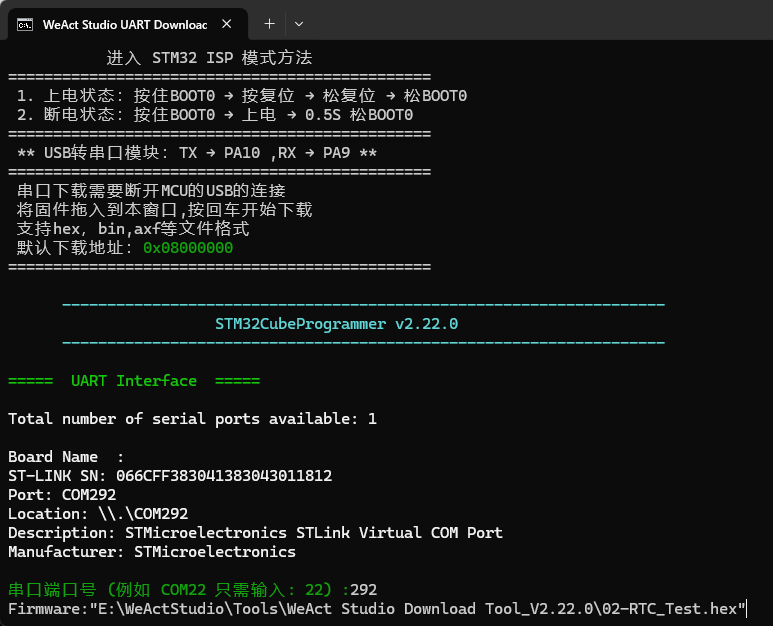
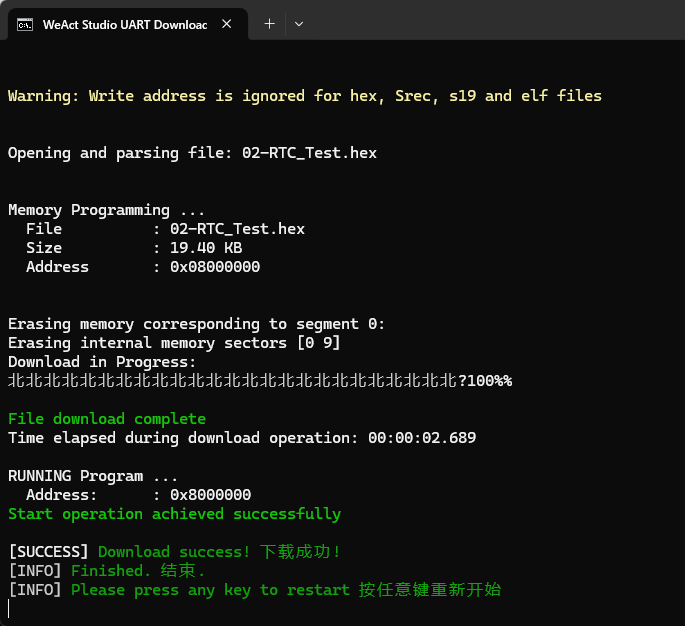
- The result looks like this.


USB download in DFU mode
USB download also has two tools: ST's STM32CubeProgrammer, and our portable WeAct Studio Download Tool.
USB download with STM32CubeProgrammer
If you hit
Error: failed to download Segment[0], see ISP mode FAQ.
- Select USB mode in STM32CubeProgrammer.
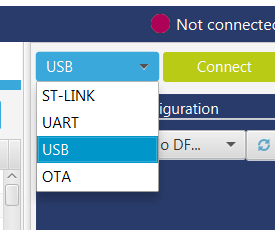
- Put the MCU into ISP mode and connect it to the computer with a USB data cable.
- Under Device Manager → Universal Serial Bus devices you should see
STM32 BootloaderorDFU in FS Mode. If you seeSTM Device in DFU Modeinstead, follow why the flasher cannot find the device. - Drag in the firmware.
- Click
Download. - Disconnect and reset when it finishes.

USB download with WeAct Studio Download Tool
If you hit
Error: failed to download Segment[0], see ISP mode FAQ.
- Extract
WeAct Studio Download Tool. - Double-click
WeAct Studio USB Download Tool.bat. - Put the MCU into ISP mode and connect it with a USB data cable.
- Under Device Manager → Universal Serial Bus devices you should see
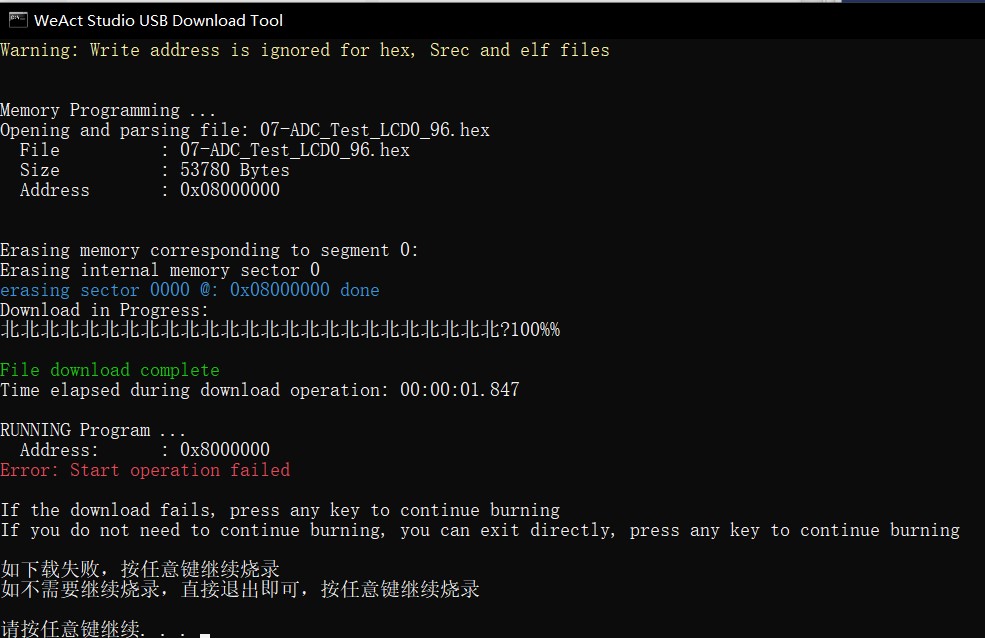
STM32 BootloaderorDFU in FS Mode. If you seeSTM Device in DFU Modeinstead, follow why the flasher cannot find the device. - Drag in the firmware and press Enter. Ignore
Error: Start operation failed; it does not affect the integrity of the download. - The result looks like this. Reset and you are done.

Common issues
Why the flasher cannot find the device
If Device Manager lists the device as STM Device in DFU Mode, the flasher will not recognise it. Right-click the device, uninstall it and tick the box to delete the driver, then install the driver from WeAct Studio Download Tool/DFU_Driver/Driver/: right-click STM32Bootloader.inf and choose Install.
Fixing the segment download error
USB download can be flaky in some weather. If you keep seeing the errors below, or the device is not recognised at all, use serial download instead and disconnect USB.
Error: failed to download Segment[0]
Error: failed to download the File
Why this happens: at low room temperature the HSI drifts.
USB downloadruns off the external high-speed crystal, and theISP program(ST's system bootloader) measures the external HSE frequency using the HSI before configuring the clock. When the HSI error is large the HSE measurement is wrong, which throws off USB timing and breaks the download. Details in/General documents/AN2606 STM32 microcontroller system memory boot mode.pdfin the shared drive. Workaround: warm the MCU above25 °C(holding it in your hand is enough).
ST-Link / J-Link flashing
Connect the STM32's SW interface:
| SW interface |
|---|
| GND |
| SCK |
| DIO |
| 3.3V |
Click the download button in MDK, or select ST-Link in STM32CubeProgrammer and follow the prompts.
Notes
- For CubeMX or standard-peripheral-library projects, enable the SW debug interface; otherwise the probe cannot see the MCU.
- If the clock settings or some other fault keep the probe from recognising the MCU, put the MCU into ISP mode by hand — the probe will then see it, and you can download.
- ISP mode is just a boot ROM that ST hard-wired into the chip. Check the BOOTx setting: in run mode it jumps to
0x08000000; in download mode it waits for a command. The SW debug interface stays open throughout, so a probe can still read and write the MCU. - Debug interfaces come in SW and JTAG flavours; essentially every ARM probe supports SW.
- If J-Link connects but cannot download, update the J-Link driver to the latest version. V6.50a is known to work.
| JTAG pin | Adapter | SW pin |
|---|---|---|
| TMS | SWDIO | |
| TCK | SWCLK | |
| VTEST, pin 1 | some J-Link units need 3.3 V here to see the MCU | 3.3V |
| 3.3V | 3.3V | |
| GND | GND |
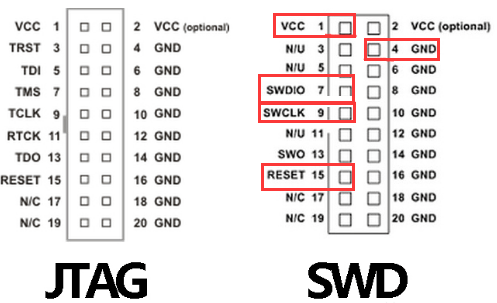 JTAG and SW interfaces
Flashing through a debug probe is strongly recommended: it is faster, and you can debug afterwards. There is a lot of outdated material online; the ST website is a better reference. This page is updated whenever new STM32 flashing issues turn up.